How to Save, Back Up and Move Your Soap Draftbook Recipes
Select an image to view it at full size.
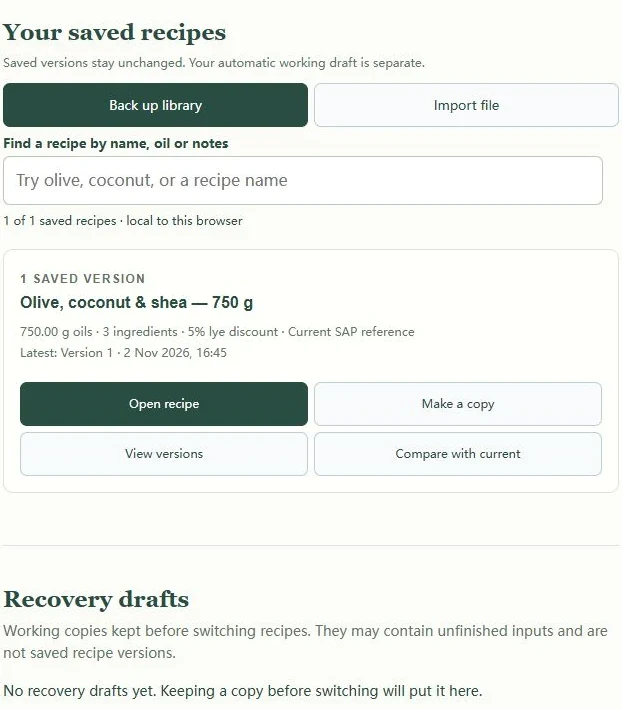
Soap Draftbook saves recipes in the browser you are using. To move them to another browser or device, download a JSON library backup, import that file in the destination browser, and check the restored records before removing anything from the original location. There is no account or automatic cloud synchronization.
Saving a recipe, keeping a working draft and downloading a weighing sheet serve different purposes. Knowing which one you have prevents an apparently saved calculation from becoming a missing record later.
Save a Recipe Before Making a Variation
In the calculator, enter the recipe inputs and open Recipe name & notes to give it a recognizable name. Choose Save recipe. You can then find the saved entry in My Recipes. The automatic working draft is separate from this saved history; reopening a draft does not mean you created a saved recipe version.
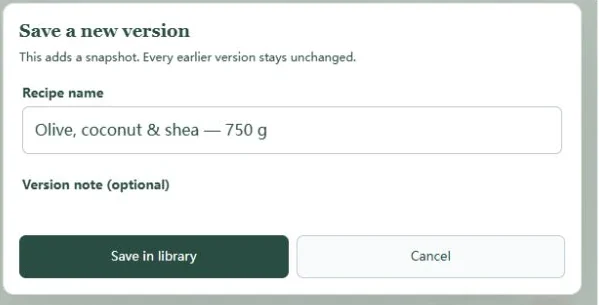
When you change an existing recipe, Save new version records the change within that recipe's history. Save as new recipe creates a separate recipe instead. Use a new version when you want the change to stay attached to the same developing formula; use a separate recipe when you want an independently named alternative.
Add a short explanation of what changed. “Water basis changed; oil weights unchanged” is easier to interpret later than “test 2.” If you make soap from a version, record which version you used in your own batch notes. A calculated recipe is a plan; the quantities actually weighed and any deviations belong in the record of that batch.
Download the Library as JSON
Open My Recipes and choose Back up library. Keep the downloaded JSON file somewhere you can locate again. A useful filename might include the export date, such as soapdraftbook-library-2026-11-02.json; renaming the file does not turn it into a different export format.
The backup is a snapshot from that moment. Later edits in the browser do not update a previously downloaded file. Export another copy after changes you want to keep, and consider a second copy outside the device holding your working browser.
On a shared computer, handle the backup as you would your other personal working files. The site does not hold a server-side recipe copy from which support can recover a lost library. Private browsing, browser-data removal, storage restrictions or device loss can remove local records.
Import Into the Destination Browser
Open Soap Draftbook on the destination browser or device, go to My Recipes, and choose Import file. Select your exported JSON file. Read the import preview before confirming. Check the displayed recipe count and any validation messages; do not treat a file-selection dialog closing as proof of a completed import.
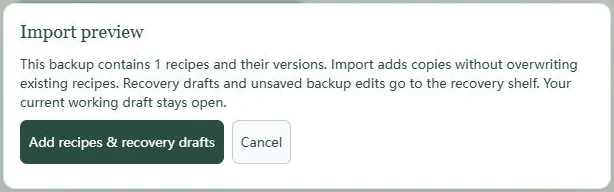
After importing, open a recipe you recognize. Compare its oil identities, weights or percentages, lye-discount setting, water basis and notes with the source. Check an earlier saved version if version history matters to you. A recognizable recipe name alone is not enough to confirm that the inputs you need arrived.
Keep both the original browser records and the export file until this check is complete. Importing restores a copy rather than creating a live connection between the two browsers. Changes made afterward remain local to whichever browser you use.
Choose the Right File for the Job
| What you want to do | Use this |
|---|---|
| Reopen recipes and retain library records | JSON library backup |
| Keep selected ingredient quantities for weighing | Download weighing sheet, a CSV |
| Print the current recipe for reference | Print recipe |
The weighing sheet includes oils, NaOH and water in the selected unit. It is not a replacement for the JSON backup and cannot restore the recipe library. A printed page also cannot recreate the browser's saved history.
If you keep notes about a batch actually made, store those alongside the relevant recipe reference. Record actual observations in that batch record instead of rewriting an earlier calculation to make it look as though it was the original plan.
If the Library Looks Empty
First check whether you opened the same browser, profile and site address as before. Browser storage is separate across browsers, devices, domains and protocols. A recipe saved on an old localhost prototype does not automatically appear on the public site. If the old location still works, export there and import here.
If local data has already been removed, look for a JSON backup you downloaded previously. A support email cannot retrieve recipe files that were never uploaded to the site. Once restored, open and verify the records before continuing your work. The calculator guide explains the workspace's current scope and storage limits.